Enable Dark Mode in Lazarus IDE and Windows Applications
Why use a third-party package?
Lazarus is a flexible, lightweight IDE for rapid application development. To add a dark theme to the IDE and to applications built with Lazarus on Windows, this note uses the third-party MetaDarkStyle package.
The upstream project currently lists Windows 10 version 1809 or later, FPC 3.2.2 or trunk, and Lazarus 2.2.6 or trunk as requirements. Check its README for the latest package names and compatibility details.
Install MetaDarkStyle
The repository provides a base package for applications and a design-time package for the Lazarus IDE:
metadarkstyle.lpkcontains the runtime theme code.metadarkstyledsgn226.lpkis for Lazarus 2.2.6.metadarkstyledsgn.lpkis for Lazarus trunk.
Open metadarkstyle.lpk in Lazarus, compile it, and install it. Then compile and install the design-time package that matches your Lazarus version. Restart the IDE; the upstream README describes the current sequence and any upgrade steps.
Set a dark editor color scheme
In Lazarus, open Tools → Options, search for Colors, and choose Editor → Display → Colors.
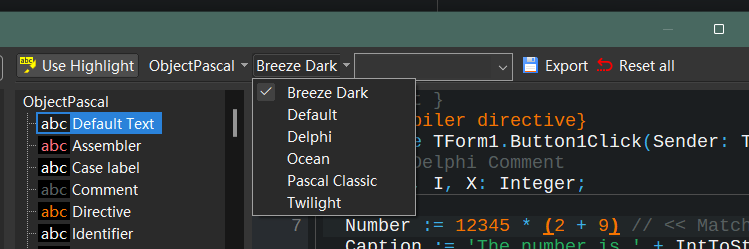
If the built-in schemes do not suit you, the Free Pascal Wiki has user-contributed editor color schemes. Copy a scheme’s XML file to the userschemes directory in the Lazarus primary configuration directory. With an fpcupdeluxe installation, this is usually under config_lazarus; create the directory if needed. Click Export in the color settings to find the configuration directory.
Apply a dark theme to an application
See the MetaDarkStyle examples. Add MetaDarkStyle as a project requirement:
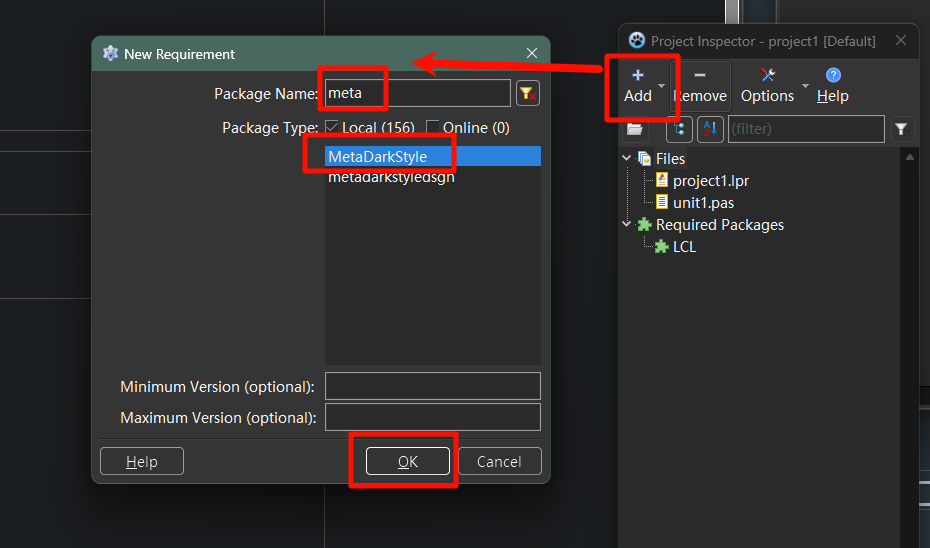
Then adapt the project’s .lpr file as shown in the repository’s examples/defaultallowdark example:
// ...
begin
  // BEGIN
  RequireDerivedFormResource := True;
  Application.Scaled := True;
  PreferredAppMode := pamAllowDark;
  uMetaDarkStyle.ApplyMetaDarkStyle(DefaultDark);
  // END
  Application.Initialize;
  Application.CreateForm(TForm1, Form1);
  Application.Run;
end.