Enable Recall on a Windows 11 Copilot+ PC
I wanted to try Recall out of curiosity, so I also wrote a note about using PowerShell to manage the Recall component. Running the command did not make Recall appear. I later checked the requirements and found that enabling an optional Windows component is only one part of the setup.
This article has been updated against Microsoft’s current Recall management documentation. An unmanaged personal device must be an eligible Copilot+ PC, and the user chooses whether to save snapshots. Recall is disabled and removed by default on commercially managed devices unless an administrator allows it through policy. The PowerShell command applies only to certain managed deployments; it does not bypass hardware, security, or organizational requirements.
My false starts
I first assumed that my Windows release was too old, even though I had the latest public update available at the time. I joined the Beta channel, but Recall still did not work.
I had previously used Defender Remover to turn off several Windows security settings. A later system update restored Windows Defender and some of those settings, which I then learned were part of the Recall requirements.
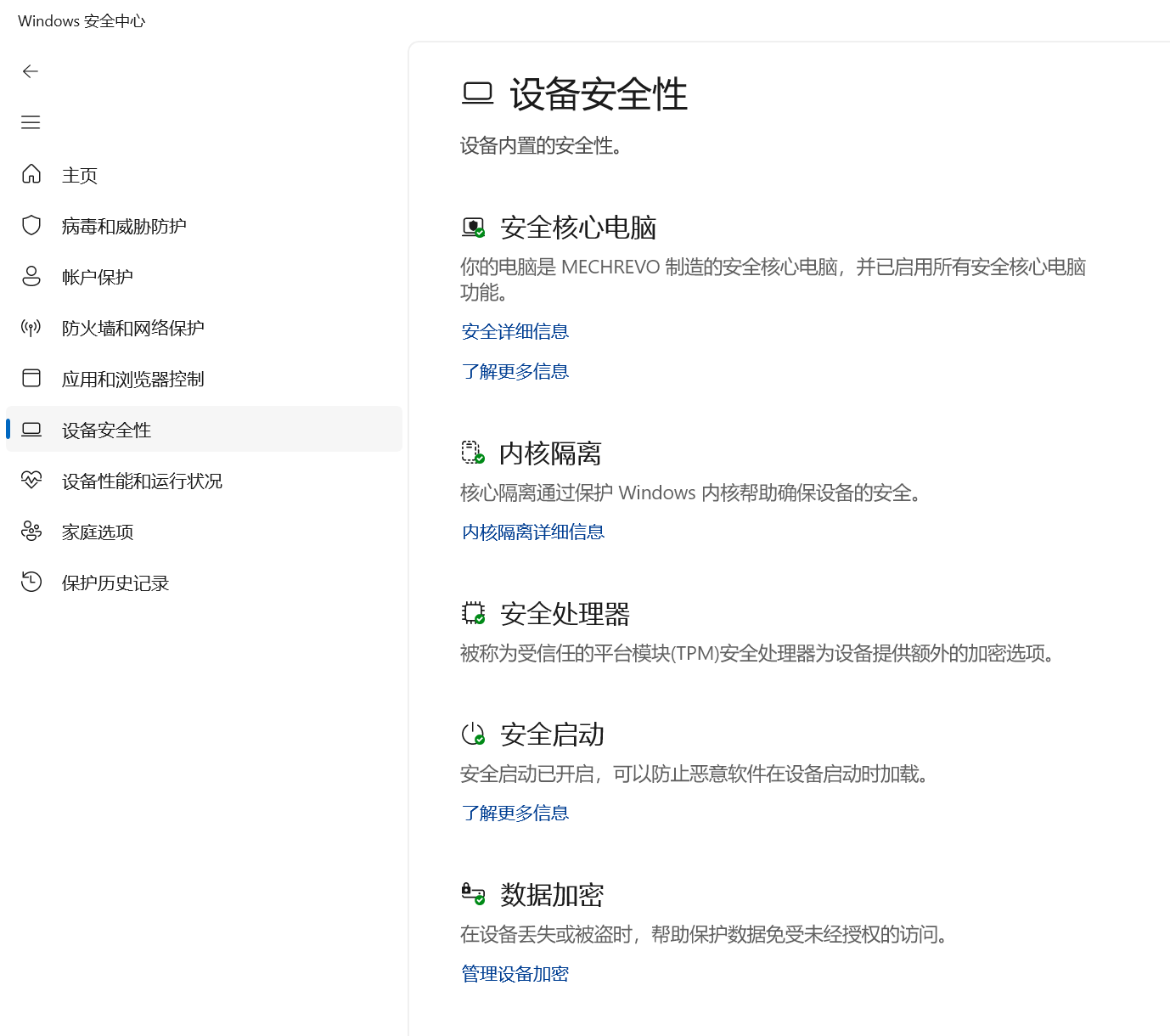
Check the requirements
Microsoft currently lists these minimum requirements on its Recall management page and Recall support page:
- A Copilot+ PC that meets the Secured-core standard
- An NPU rated at 40 TOPS
- 16 GB of RAM
- 8 logical processors
- 256 GB of storage capacity
- At least 50 GB of free space to enable Recall; snapshot saving pauses automatically when free space drops below 25 GB
- Device Encryption or BitLocker enabled
- Windows Hello Enhanced Sign-in Security (ESS), with at least one biometric sign-in method enrolled
Check the device model, Windows version, and security state against Microsoft’s current documentation and the manufacturer’s specifications. Seeing a Recall icon or animation in Windows Search does not prove that every requirement is met.
Secured-core PC
Secured-core is a set of device security capabilities. I noticed a BIOS option whose description mentioned Copilot+ PC requirements and assumed that enabling it would be enough. It was not: changing one BIOS setting does not establish that the whole device meets the Secured-core requirement. See Microsoft’s Secured-core PC documentation and your PC manufacturer’s guidance.
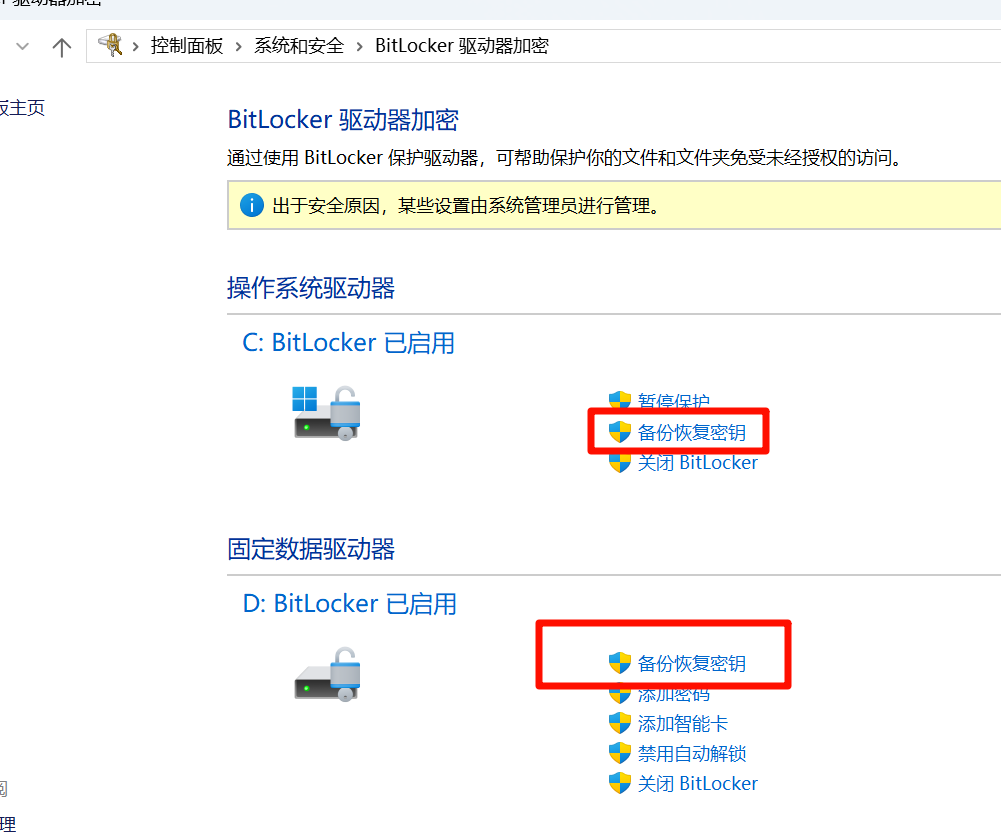
Device Encryption or BitLocker
Enable Device Encryption or BitLocker in Windows Settings if your device supports it. Before enabling drive encryption, make sure you have a recovery key backed up somewhere you can access if Windows or the device becomes unavailable. Do not assume that the key is safely backed up unless you have verified it.
Windows Hello ESS
ESS requires a compatible biometric device, such as a supported face or fingerprint reader, and a biometric sign-in enrolled in Windows Hello. Follow Microsoft’s Windows Hello ESS documentation to verify support and troubleshoot it.
My laptop uses facial recognition and no fingerprint reader. I checked whether its camera devices were compatible with ESS:
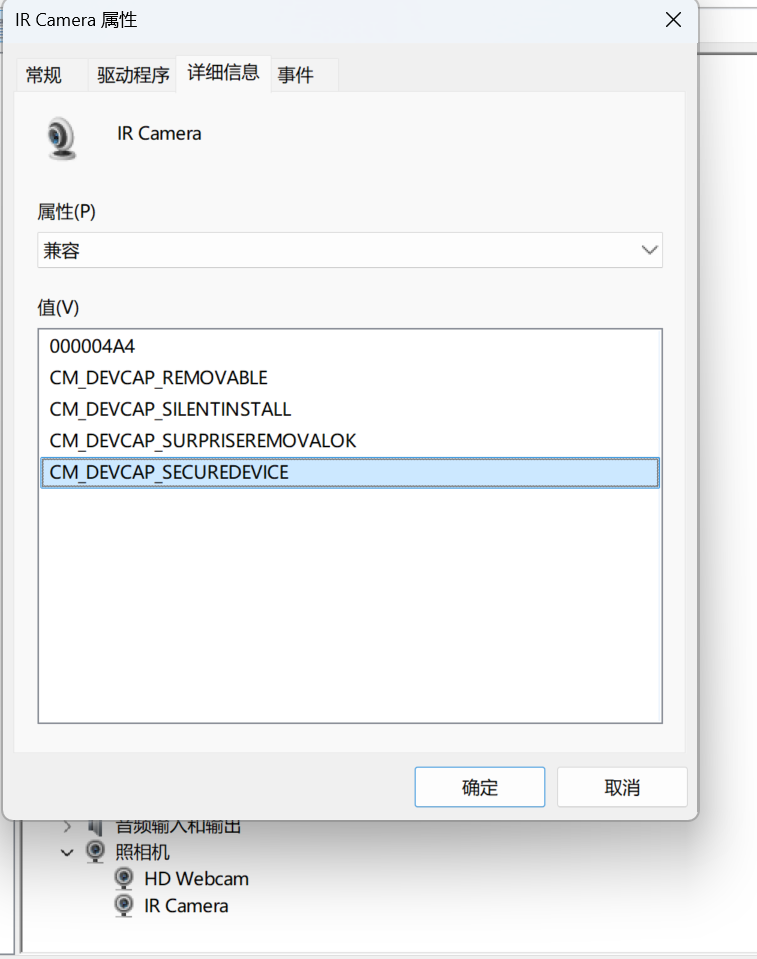
If a supported biometric device is present but Windows still reports that ESS is unavailable, use the current documentation’s troubleshooting and verification steps. In my earlier attempt, I checked for bioiso.exe and ngciso.exe; I would not recommend copying my old steps to delete a PIN or biometric sign-in, or to restart the biometric service, because they can affect sign-in. Contact the device administrator if the PC is managed by an organization.
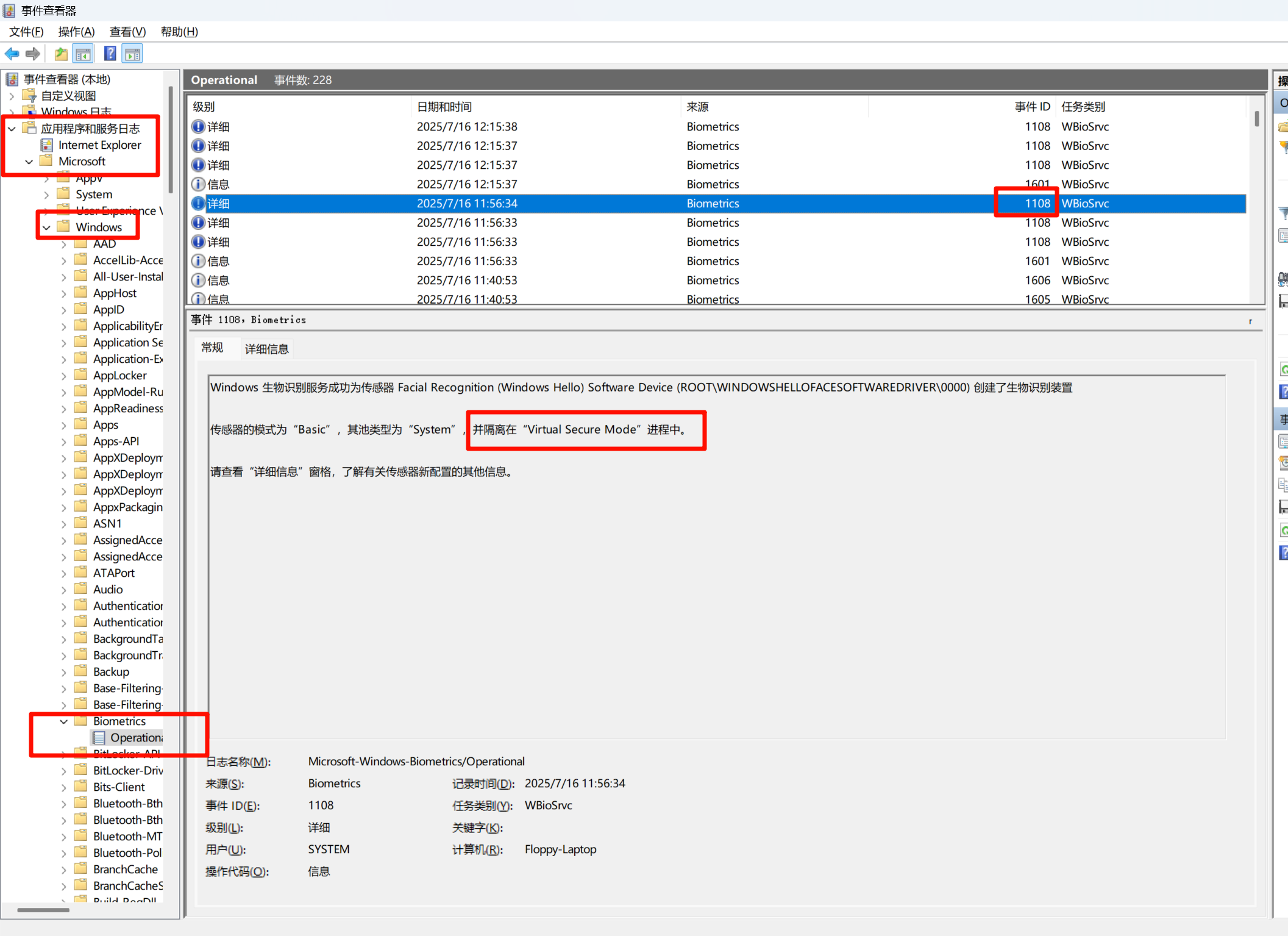
I could not find the Security Center status check described in the documentation at the time. I used Event Viewer to confirm Virtual Secure Mode instead:
Turn on Recall and choose whether to save snapshots
After the device meets the requirements, open Recall settings and follow the prompts. Saving snapshots is a separate user choice. On an unmanaged personal PC, the user must opt in; on an organization-managed PC, an administrator must first allow Recall through policy.
With Recall enabled in my test, Windows asked me to authenticate with facial recognition when I enabled or viewed the feature. The exact prompts can vary with the Windows release and device configuration.
My experience
I found Recall somewhat useful. It felt like a searchable timeline of computer activity rather than a smooth video replay, and it could search text and apps shown on screen. I often forget where I saw something online, so that seemed like a possible use. After 12 hours of trying it, though, I had not yet needed it.
My view is still that the feature is of limited use to me. Enabling snapshot saving is a separate choice, and it can be turned off in Recall settings without removing the Windows optional component.